
No MoreApp account yet? Sign up here.
This feature is available in the Branch, Tree and Forest plan. Visit our Pricing page.
1. Open the HTML code
Log in to the MoreApp Platform and select the form you want to work with. Click Edit form and open the Integrations tab. Once there, go to the Emails section.
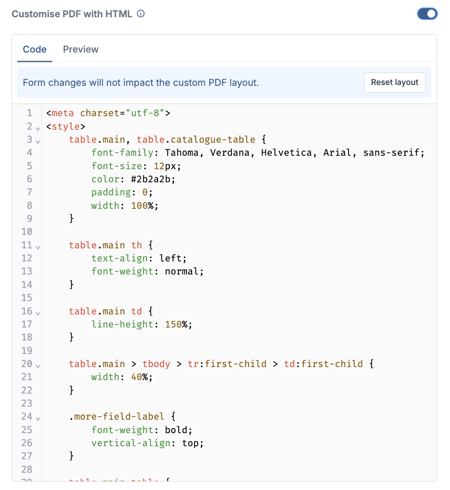
Click to open the settings of the email and PDF report. Scroll down to the PDF section. Activate the option ‘Customise PDF with HTML’, so you can access the details of your PDF. The code will be opened, and you will see the HTML view.
2. Change the font
Search for font-family to adjust the font.
Search for font-size to adjust the font size.
<style> table.main, table.catalogue-table { font-family: Roboto; font-size: 12px; color: #2b2a2b; padding: 0; width: 100%; }
MoreApp offers fonts that you can use to design your PDF Report. You can find these fonts in the dropdown menu of the Email section.
Tip: If you want to use different fonts in your report, you can use our Word integration to design your report. Find more information about the Word integration here.
3. Congratulations!
You’ve changed the font of your PDF. You can now personalise your PDF font easily.
Want to stay up to date with our latest tutorials? Go to YouTube and hit the Subscribe button!