
No MoreApp account yet? Sign up here.
1. Add Service Accounts
Access the MoreApp Platform. Open your profile’s dropdown menu in the top right corner. Under the Settings section, click on Connections.
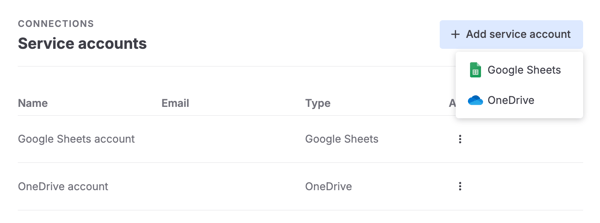
Now, open the Service accounts tab and click on Add service account.
Choose whether the account you want to connect is from Google Sheets or OneDrive.
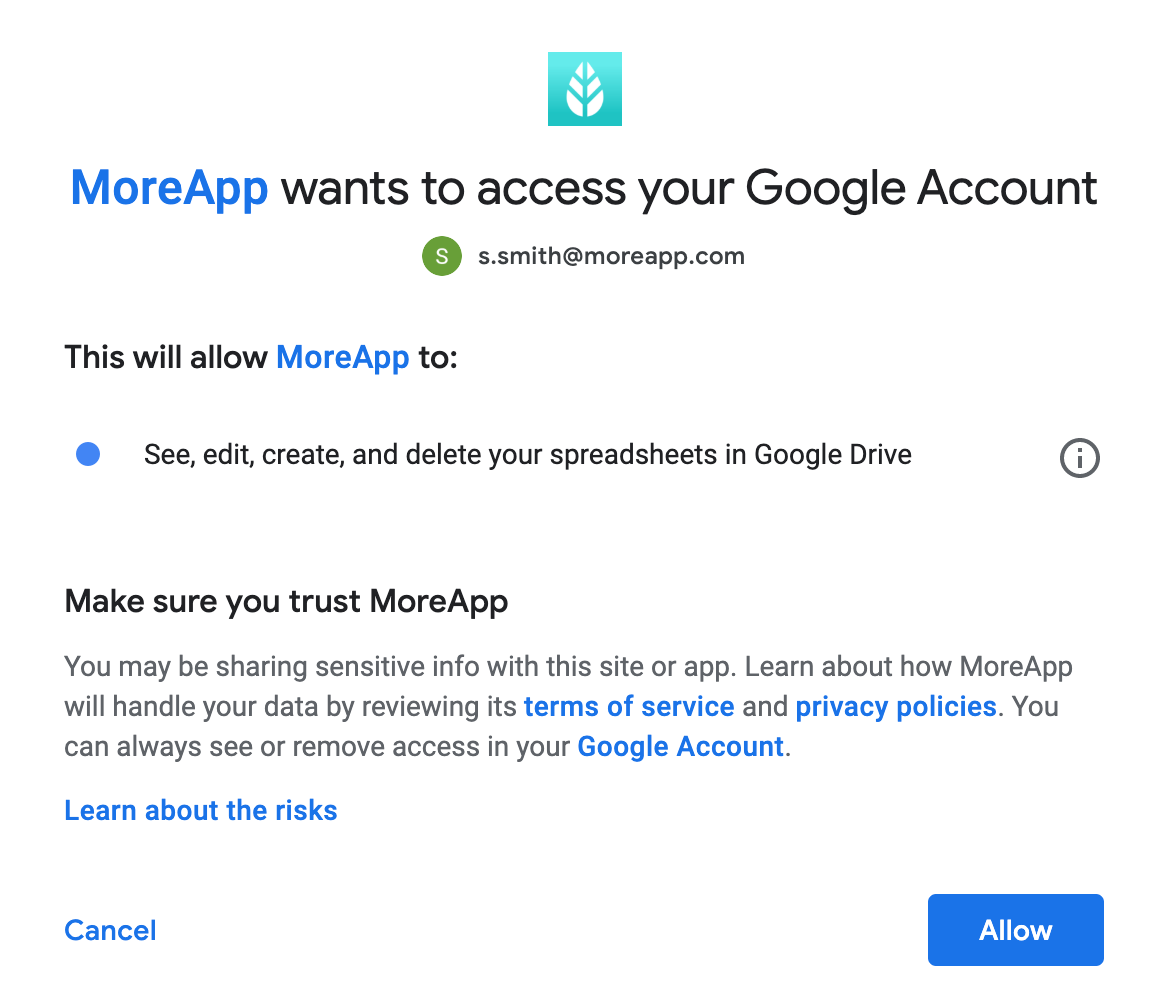
Select the email address you wish to configure with MoreApp.
Allow MoreApp access to your Google account.
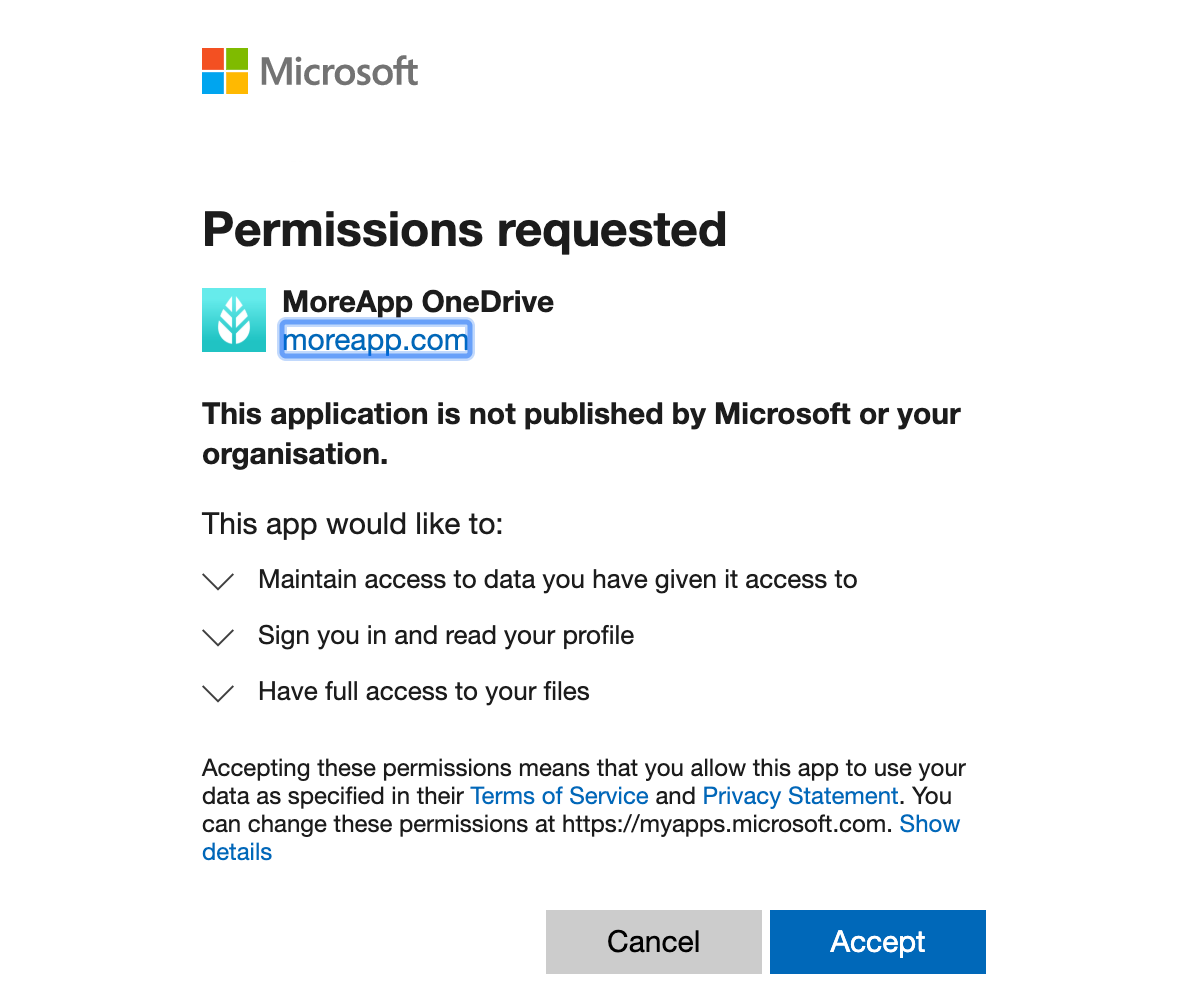
Allow MoreApp access to your OneDrive account.
2. Manage the accounts
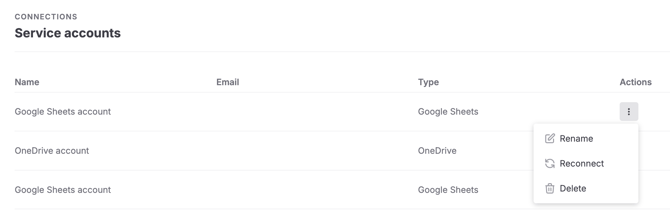
The service account will then be automatically added to the list. From this tab, it is possible to rename, reconnect or delete the service accounts.
Under the Actions column, click on the three dots to open the dropdown. Here you can select the desired action.
- Click on Rename to change the name of the service account. This is helpful for easier identification of each of the accounts connected.
- Click on Reconnect to connect the account again to the Platform. A pop-up window will appear in which you can choose a new or existing account.
- Click on Delete to remove the connection. A pop-up will appear in which you need to click Delete to confirm the deletion.
3. Add Service Accounts via Integrations
When adding integrations to your form, you will be able to select the Service Accounts you previously added to your form.
It's also possible to add new Service Accounts by clicking on Connect new account in the integration configuration.
If you want to know all about configuring the integrations, click on the links below to follow a step-by-step guide!
Want to stay up to date with our latest tutorials? Go to YouTube and hit the Subscribe button!