
No MoreApp account yet? Sign up here.
This feature is available in the Branch, Tree and Forest plan. Visit our Pricing page.
1. Create a Scenario
Log in to Make.com and go to the Scenarios tab. Then, click on + Create Scenario in the top right corner.
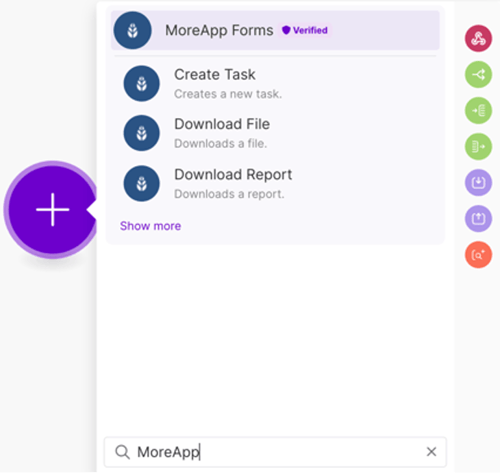
Click on + and use the search bar to find the software you want to use for this connection. In this case, MoreApp Forms.
2. Configure your Trigger
Select the Trigger you want to use. In this example, we are using “Watch Submission Created”.
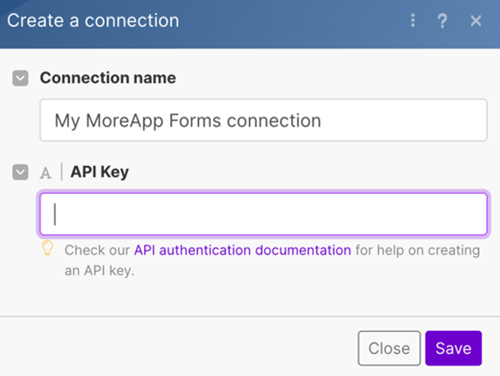
Make sure to select the correct MoreApp account and verify the connection using your API key.
Note: If you’ve previously set up an integration with MoreApp, you can select the account directly from the drop-down menu.
After a successful validation, click Run once.
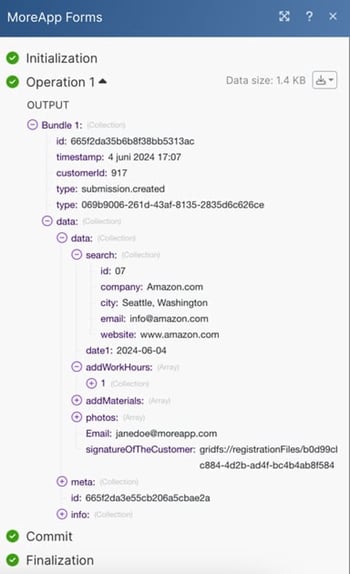
Next, go to your MoreApp account and submit a form to receive the registration data. You’ll see the data displayed as shown in the example below:
3. Route your Scenario
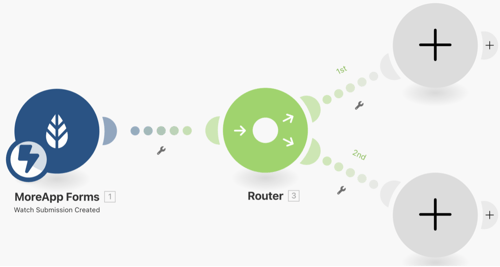
By adding routes, you can define what happens with the data. Each route can perform its own action, such as downloading a file or adding an attachment in vPlan.
Click the Flow Control icon to add a Router.
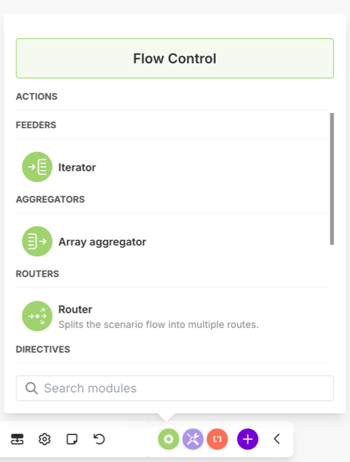
Click the + icon inside the Router to add additional routes.
4. Add a PDF to your card in vPlan
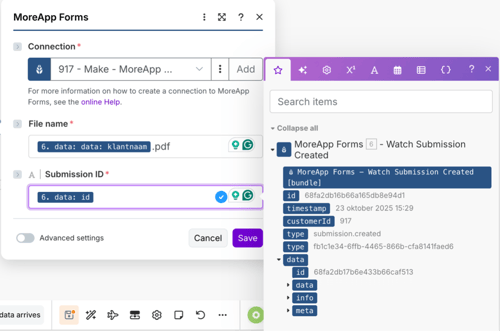
Choose a route and click the + icon to add a new module. Select MoreApp and Download Report.
In the File name field, enter the desired name for the file. You can also use placeholders to automatically include data such as the date or other form information.
In the Submission ID field, select the correct ID for the submission.
Finally, click Save to store your settings.
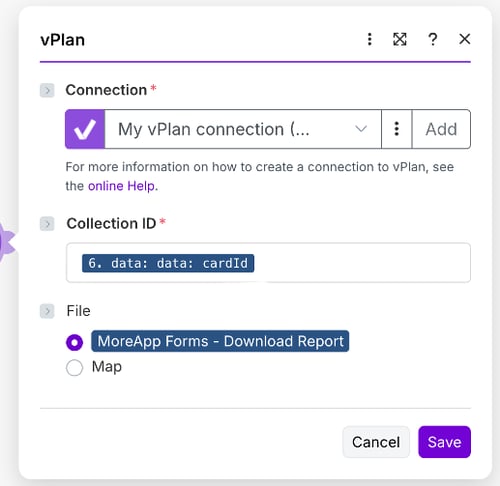
As the final step, add another module where you select vPlan, and Create an attachment.
Under Collection ID, select the Card ID that you previously created as a field in the MoreApp form. Keep the selection MoreApp Forms – Download Report as it is.
Click Save to store your settings.
5. Add photos to your card in vPlan
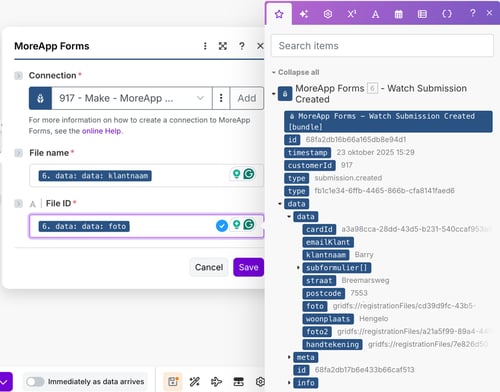
Once again, decide on a route and click the + icon to add a new module. This time, select MoreApp and Download File.
In the File name field, enter the desired name for the file. You can also use placeholders to automatically include data such as the customer name or date.
In the File ID field, select the correct photo from the submission.
Finally, click Save to store your settings.
As the final step, for this route, add another module, select vPlan, and Create an attachment.
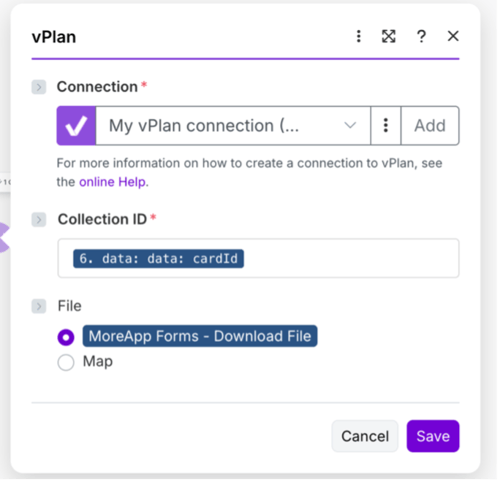
Under Collection ID, select the Card ID that you previously created as a field in the form.
Keep the selection under MoreApp Forms – Download File as it is.
Click Save to store your settings.
6. Add multiple photos from a Subform to your card in vPlan
When you have multiple photos within a Subform, use the Iterator module to download and add each photo individually to your card in vPlan.
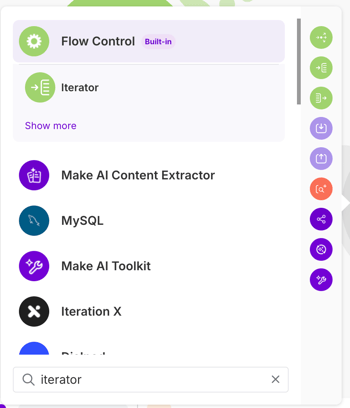
Choose a route and click the + icon to add a new module. Select the Iterator module using the icon or the search function.
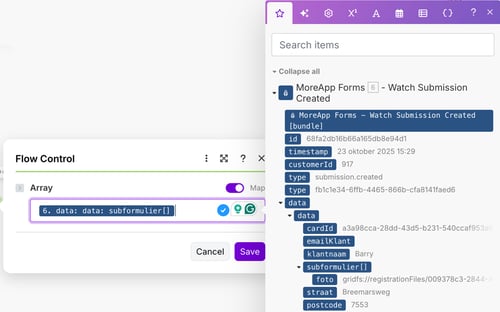
In the Array field, select the desired Subform.
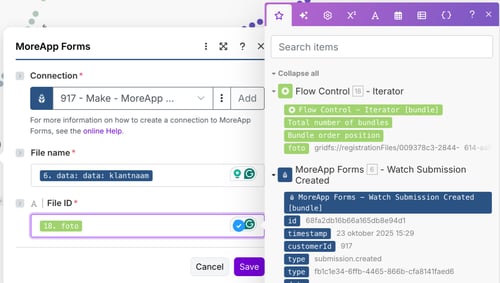
Add another module by selecting MoreApp and Download File.
In the File name field, enter the desired name for the file. You can also use placeholders to automatically include data such as the customer name or other form information.
In the File ID field, select the photo from the Iterator module.
Finally, click Save to store your settings.
As the final step for this route:
-
Add another module
-
Select vPlan
-
Create an attachment
Under Collection ID, select the Card ID that you previously created as a field in the form.
Keep the selection under MoreApp Forms – Download File as it is.
Click Save to store your settings.
7. Test the Scenario
Once you’ve set up your integration, it’s time to test whether the connection works correctly. To do so, click Run once.
Go to MoreApp and submit a form to receive the registration data. If everything functions as expected, the configuration is correct. You can now proceed with the last step.
8. Activate the Integration
Complete the configuration by giving the scenario a name. And, do not forget to save the scenario.
Now, activate the scenario by toggling the switch from Inactive to Active.
Congratulations! Now, reports and images will automatically attach to the correct vPlan card each time a form is submitted via MoreApp!
Want to stay up to date with our latest tutorials? Go to YouTube and hit the Subscribe button!