
No MoreApp account yet? Sign up here.
This feature is available in the Branch, Tree, and Forest plan. Visit our Pricing page.
1. Create a Scenario
Open Make and click on the Scenarios tab in the side menu. Once there, click + Create scenario.
A new screen will appear with a plus sign in the middle. Click the + button, and search for the vPlan app.
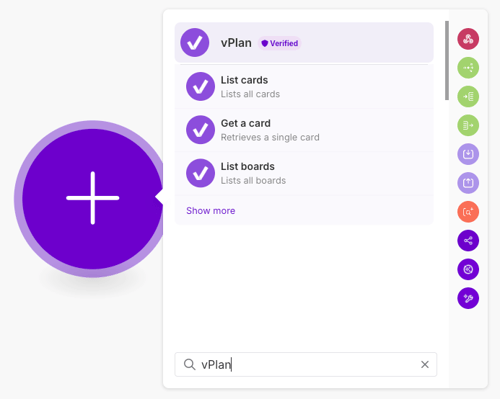
2. Select a Trigger
Now, you need to choose a Trigger. For this example, select the Trigger “Watch attached events”, so that the desired action takes place when you, for example, add a Label or Resource to your card.
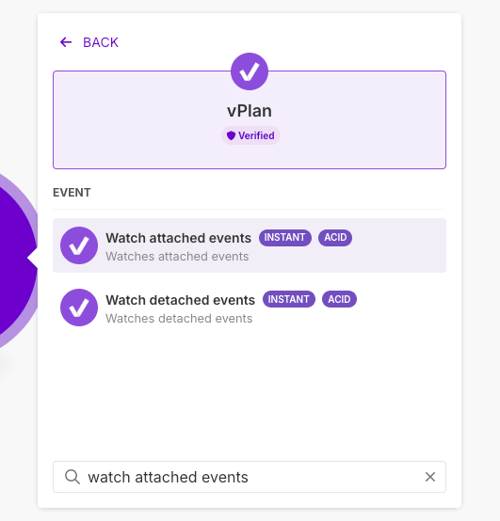
Note: You can use Actions in all subscription plans. Starting from the Branch plan, you can use both Triggers and Actions. This is because Triggers require Webhooks.
3. Create a Webhook
Create a Webhook or select an existing connection. To establish a new connection, you will need to add an API key.
Once you’ve completed this step, the screen will update and the vPlan icon will appear in the center.
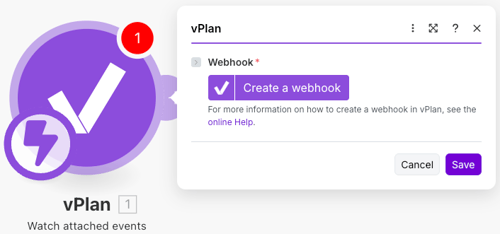
4. Test the Trigger
Test the Trigger by clicking Run once.
Go to vPlan and add a Resource or Tag to your card.
Go back to Make.com. If the configuration has been set up successfully, the scenario run will complete, and the vPlan module will be displayed in green.
5. Choose an Action
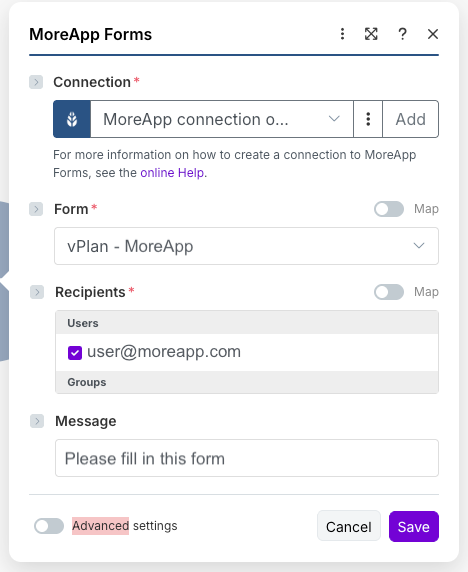
Click + to add another module. Search for MoreApp Forms and select the Action “Create Task”.
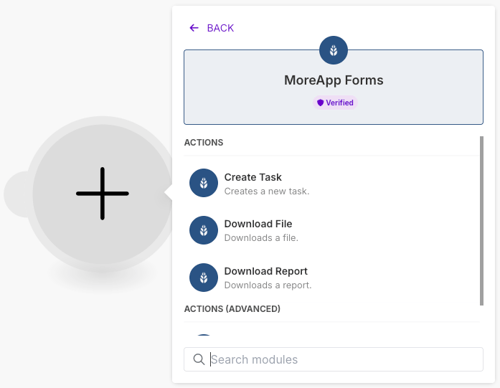
To configure this Action, connect your MoreApp account.
Note: If this is the first time you’re setting up your MoreApp account in Make, you’ll need to add an API key to create the connection.
-
Select the MoreApp form for which you want to create a task.
-
Select the recipient(s) who should receive the task. You can select multiple users or an entire group. Note: Ensure the selected users have access to the form.
-
Use a placeholder if you want to determine the recipient based on a resource in vPlan. To do this, enable the Map toggle.
-
Add a message that the recipient will see in the push notification when a task is created. You can also use placeholders in this field.
6. Pre-fill form fields
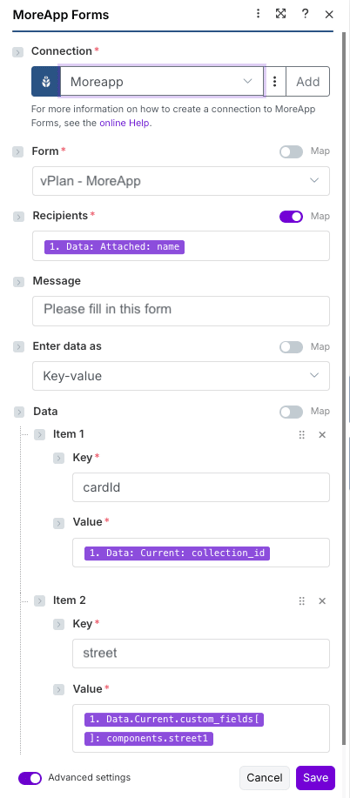
If you want to pre-fill the form fields via Make, click Advanced settings.
Under Enter data as, select Key-value. Add as many items as you would like to pre-fill.
The Key is the data name of the MoreApp field, and the Value is the corresponding value from vPlan.
Once all items have been added, click Save.
7. Test the Scenario
Once you’ve set up the whole scenario, it’s time to test whether the connection works correctly. To do so, click Run once.
Then, activate the configured scenario by adding a resource or label to your vPlan card. If everything functions as expected, the configuration is correct. You can now proceed with the last step.
8. Activate the scenario
Complete the configuration by giving the scenario a name. And, do not forget to save the scenario.
Now, activate the scenario by toggling the switch from Inactive to Active.
Congratulations! Now, a new MoreApp task will be automatically created whenever the trigger is activated in vPlan.
Want to stay up to date with our latest tutorials? Go to YouTube and hit the Subscribe button!