
No MoreApp account yet? Sign up here.
This feature is available in the Branch, Tree and Forest plans. Visit our Pricing page.
What are Form Variables?
Form Variables let you define a value once and use it anywhere in your form. These extend the concept of variables like the username, making your forms more scalable and maintainable.
The idea of this feature is that the end user can not modify the values coming from variables.
The values for Form Variables are always predefined in the Form Builder, but can be overridden by values specified in a task. Therefore, you can customise forms per task without editing the form.
To ensure correct usage, each variable will have a designated type, such as number, date, text, etc.
You can use Form Variables wherever placeholders are supported. You can use them also for rules and calculations, and in data output (API or webhooks).
Why use Form Variables?
You can use Form Variables to:
- Replace hidden fields for calculations: Instead of adding hidden number fields, you can define a variable and add it to the calculation, so it is replaced for every submission or task.
- Send external data into your workflow: You can attach external IDs or metadata, so you match submissions to your internal system and automate workflows seamlessly.
- Control form behavior with one form: Instead of duplicating forms, you can use variables to control logic. This lets you reuse a single form for multiple scenarios.
How to set up Form Variables
1. Create a Form Variable
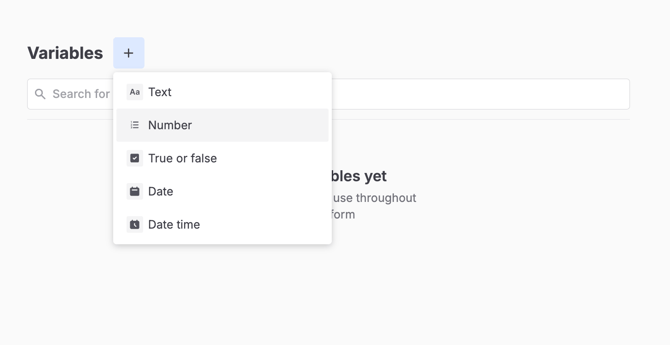
Open a form in the MoreApp Platform and click on Edit form. Go to the Variables section in the menu and click on the + icon to add a variable.
First of all, you need to choose the type of variable. Select the correct type to prevent errors.
Then, add the name and default value. Use clear and descriptive names to identify each variable easily.
2. Use the Form Variable in your form
Once the variable is created, you can use it in the form. You can add the variable in calculations, rules, emails, etc.
The variables can change for every submission without modifying the form.
2.1. Use Variables in Calculations
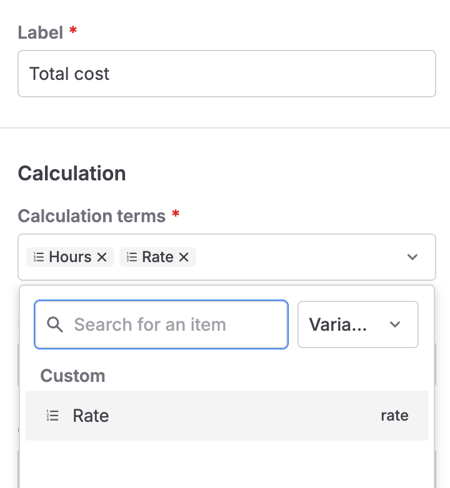
Add the variable you have created as a Calculation term in your Calculation fields. To find the proper item, you will need to go to the Variables dropdown in the calculation settings.
The variables will help you to avoid having extra calculations in your forms.
2.2. Use Variables in Rules
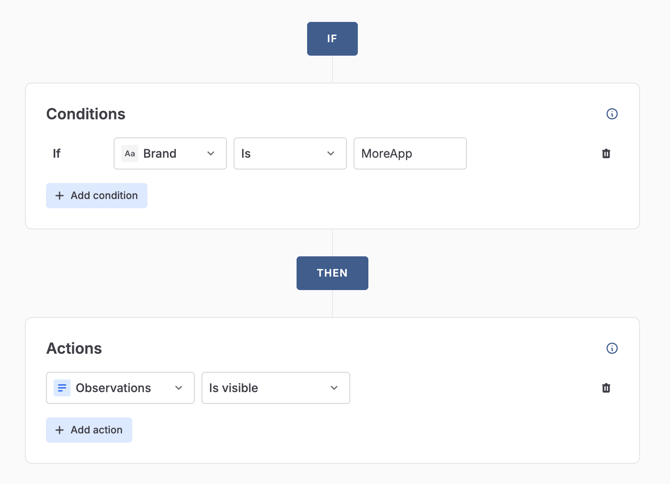
When creating rules, you can add the variable as a condition to trigger an action when it matches a specific value.
2.3. Use Variables as a Filter in the Search field
If you are working with Search fields and you need to filter the items, the Variables are useful.
For example, create a Text variable for Region.
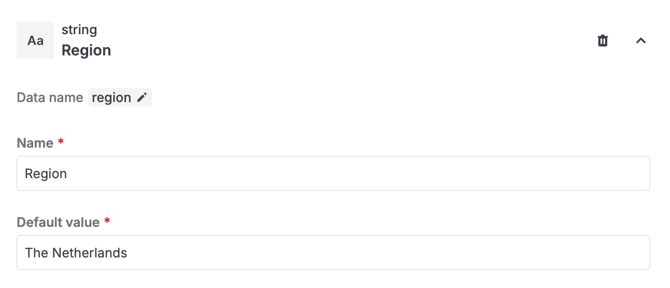
Use this Variable as the filter in the Search field.
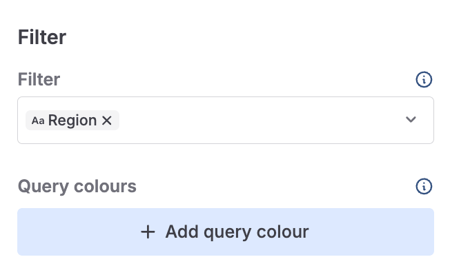
When filling in the form, you will only see in the Search field the items related to that specific region. You can overwrite the value of the Variable via Tasks to make this work. See more in section 3.
2.4. Show Variables in your reports
The Variables will not appear by default in the PDF. If you want to add them to the PDF reports, you will need to work with HTML code and include the appropriate placeholders.
You can also use the Variables placeholders in the Word or Excel integrations.
The logic behind it is the same as with all the other form fields. For example, if you have the variable ‘Rate’, the placeholder that needs to be used is ${rate}.
- For the PDF, include in your HTML the following code:
<tr class="${_hideWhenEmpty(rate)}">
<td class="more-field-label">Rate</td>
<td>${rate}</td>
</tr>
- For Word or Excel, just include the placeholder {rate}
3. Overwrite the value in a Task
When creating a task, you can overwrite the default value with the provided value in the Form Variable.
If you access the section Overwrite variables, the list of different variables will appear. If needed, you can modify the ones you want to adjust for the task.
You can click Reset to go back to the default value of the variable.
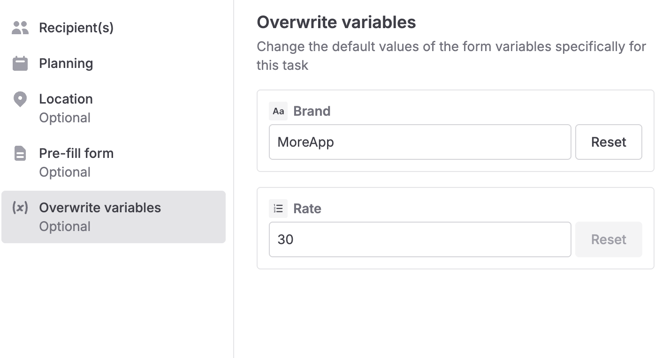
Notes:
- Tasks are the most powerful way to implement dynamic values to form fields using Variables.
- If you create tasks via API, you can also overwrite the values of the variables in your API calls.
3.1. Overwrite True or False variables
When working with Tasks, it is useful to add the variable ‘True or False’. That way, when creating a new task, you will be able to overwrite the value for each task.
For example, if you have a ‘True or False’ variable named “Is this urgent?”, you can adjust it according to the urgency of the case.
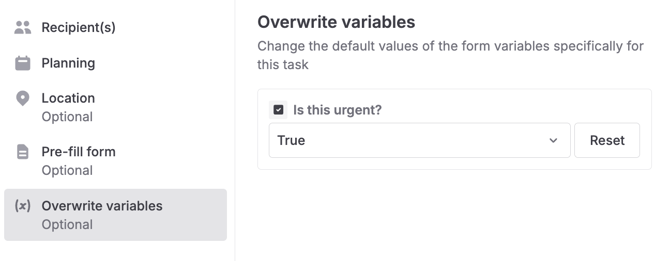
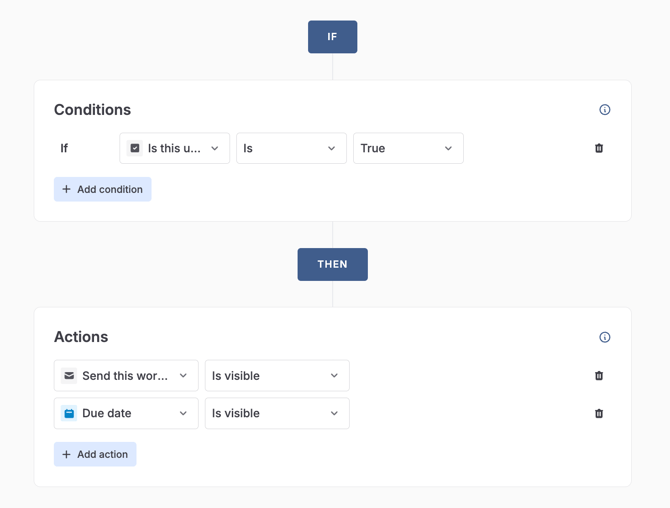
If you overwrite that with ‘True’, the task will show the specific fields that need to be visible based on the rule you have previously configured.
4. Delete Form Variables
In case you need to remove any of the existing variables, access the Form Variables section and find the variable you want to delete. Click on the trash icon to remove the variable.
5. See an example
Imagine a company that performs inspections for different customers, and each client has a different hourly rate.
- Type: Number
- Default value: 30
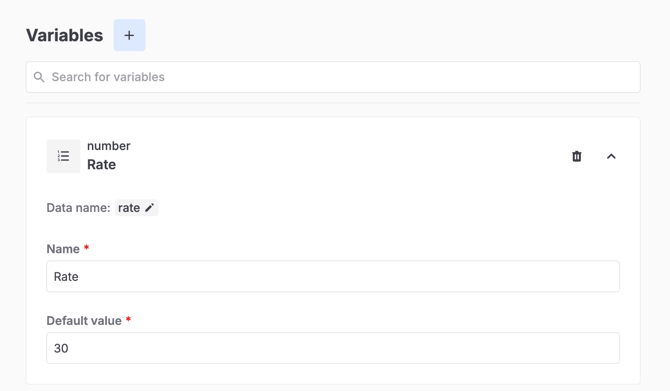
Then, this rate will be used in the Calculation field. For example: Total cost = hours * rate.
If you work with tasks, you can overwrite the rate value when creating the task for a specific customer.
Form Variables will help you to show the total cost with the correct value for each customer, without having extra calculations in the form.
Want to stay up to date with our latest tutorials? Go to YouTube and hit the Subscribe button!