
No MoreApp account yet? Sign up here.
1. Create an account
First, pick a plan and start a free trial to create your MoreApp account.
Note: You can switch between plans during your trial. After your trial, you can decide if you want to continue with MoreApp. If so, you need to select a plan afterwards to continue working with your forms.
2. Create a folder and a form
After you create your account, you can start digitising your forms in the MoreApp Platform.
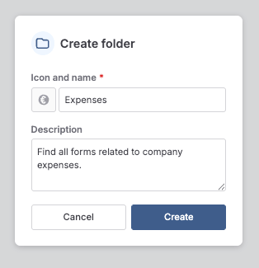
Go to the Folders overview and click on the + icon to create a new folder. Give the folder a name and choose an icon to better identify the folder.If desired, you can also include a description for the folder.
Once this is completed, click on Create.
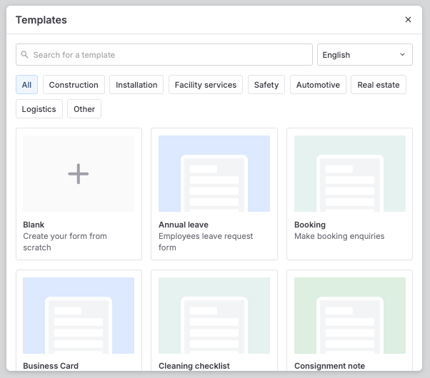
Now, you can start creating forms. In the upper right corner, click on + New form and choose if you want to use a blank form or a pre-defined template.
3. Form Builder
Once you've created your form, you will find yourself in the Form Builder. There are 5 tabs within the Form Builder, which are: Editor, Subforms, Rules, Integrations and Variables. In the menu, you can move from one tab to another.
4. Add fields
You make your forms using fields. As you can see on the left side of the Form Builder, there is a list of fields you can use to customise your form.
On every field, there is an information button with a further explanation of what the field does. This can be seen when you hover over the information button.
Add fields to your form by double-clicking or dragging them into the form. After adding a field to the form, when you click on it, you can modify the properties.
5. Configure the fields
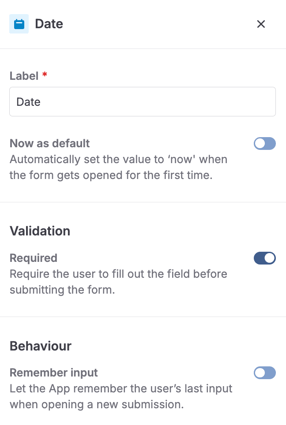
Every field has a Label section where you can give it a name.
You can create your forms with as many fields as you like. You can also position the fields to your liking by clicking on the field and dragging it to the desired position.
You can make fields Required. If the field is required, an error message will appear indicating to fill in the required field.
Also, you can turn on Remember input, which makes sure the field remembers the last input on your device.
You can also mark fields as favourites. This is ideal for the fields you use often. The modifications you made to the field will be saved for later use. All your favourite fields will be stored under the Favourites tab.
Now that your form is completed, you can click on Publish.
6. Configure the email
You can now configure the email that will be sent every time the form is submitted. Go to the Integrations tab and, under the Emails section, configure the email to your liking.
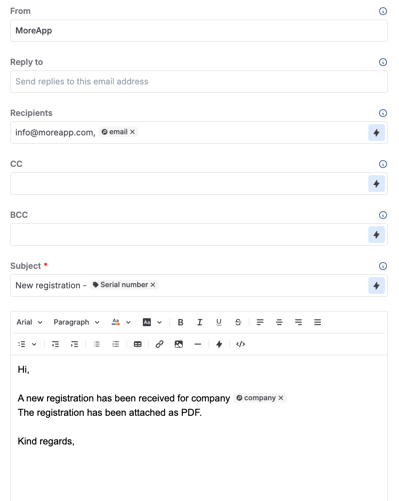
It is also possible to configure multiple emails if you need to send different templates.
By clicking on Publish, you have completed your form! Your form is now ready to use!
7. Invite a user
On the User management tab, go to the Users page and click on Invite user. There, you will have the option to invite a single user or multiple users.
Click on Single user and choose the user you would like to invite by filling in the Email address. Select the language of the invite, the role for this user, and add the user to a group(s). and Lastly, click on Invite. The person that you invited will receive an email to activate the account.
If you want to invite multiple users, you will need to upload an Excel file with all the email addresses in the first column.
You can also give a user permission to a form by clicking on the Permissions tab in the form overview.
Read more about managing users in this Help Center post.
Congratulations! You are set up to submit your forms! When the form is sent, you will receive an email with the PDF report in your inbox!
If you want to go further already, below you will find how to export and import data.
8. Export data
When your form is completed, you can export data to Excel, Google Sheet, or any software that you are used to working with.
9. Import data
You can also import data from Excel, Google Sheet, or using a URL.
Do you want to be the first to see our latest tutorials? Go to YouTube and hit the Subscribe button!