
No MoreApp account yet? Sign up here.
1. Go to the Submissions tab
To get started exporting data, you need to log in to the MoreApp Platform.
Select the form you want the data exported from under Forms. Once you selected the form go to the Submissions tab to see a summary of the data.
2. Export data
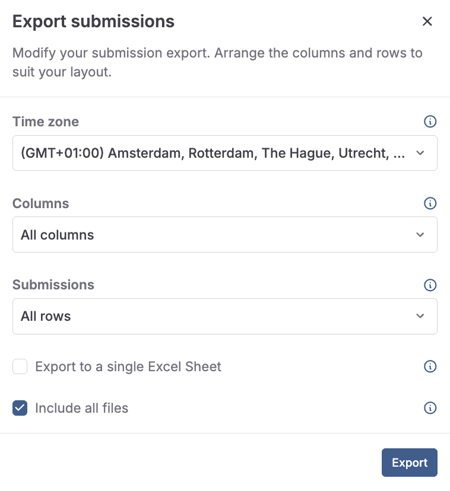
If you want to have all the data exported at once, click on Export submissions. This button can be found at the top right corner of the Submissions table.
Select your time zone to export data to your Excel file. That way, all hours shown in the Excel file would be set up within your own time zone, instead of UTC+0, which is the one by default.
You can decide if you want to export all columns or if you prefer to export only the desired information. If you do not want to export the data from all the fields of your form, you can choose which columns you would like to export. Click on visible columns in the table to export only the columns that appear in your overview. Click on custom if you prefer to customise your export.
If you want to export all the details of the form to the same tab, you can select Export to a single Excel Sheet. When this option is not selected, each subform’s information will be exported on a new sheet of the Excel file.
Next to that, you have the option to select Include files, so all the images and files of your form will be exported too.
Click on Export to start the process. You will receive an email once the export has finished.
Note: If the option ‘Include all files’ is enabled, there is an export limit of 1.000 submissions.
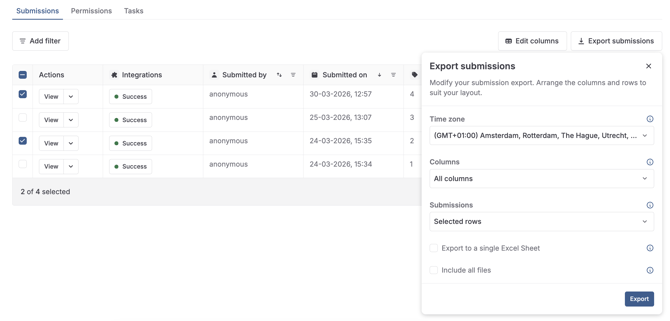
In case you do not need to export all the submissions, you can export each completed form separately or select multiple submissions by simply clicking on them. Once you've selected the submissions of your choice, click on Export submissions.
Follow the same process as before. The only difference you will see is that, under the export configuration, the option Selected rows is choosen now.
2.1. Custom your data export
If you have selected the option Custom for the columns you want to export to your Excel file, here are the next steps you need to follow.
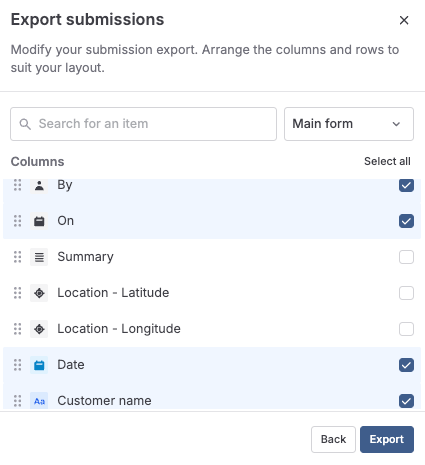
After configuring the export settings as explained in the section above, you need to click on Next. Then, all the fields of your form will appear so you can select which columns you want to receive in your export.
Select the columns you want to export by clicking on the checkbox next to them. Decide the order of the columns by dragging them to the desired position.
You can select columns from the main form or from the existing subforms.
Once finished, click on Export.
3. Download the data
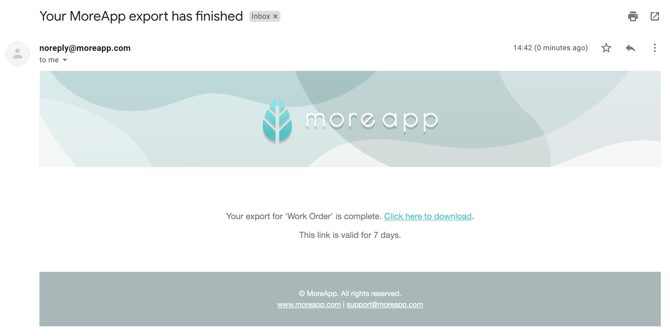
Once the export has finished, you will receive an email in your mailbox. Your export is ready to download! Click on the link to Save your file.
Notes:
-
If you have not received the email in your mailbox, you may find it in your Spam folder.
-
The link stays valid for 7 days.
-
The file will be downloaded as a zip file with an Excel file and separate folders containing the files per submission.
4. Excel file
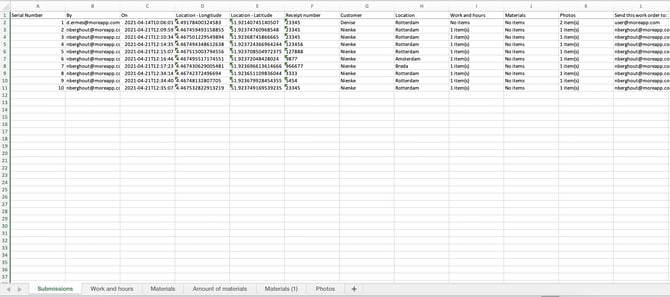
When opening the Excel file, you will find the submission data.
Note: Fields that contain files, such as the Photo or Signature, have a clickable link in the Excel file.
5. Removed fields
When a field is removed from the form, it will not be shown in the Submissions tab or the export. You can get the data back by adding the field again anywhere in your form with the same data name (Label).
6. Congratulations!
You have successfully exported your data to an Excel file!
Want to stay up to date with our latest tutorials? Go to YouTube and hit the Subscribe button!