
No MoreApp account yet? Sign up here.
This feature is available in the Branch, Tree and Forest plans. Visit our Pricing page.
1. Create the Task
Log in to the MoreApp Platform and go to the form you want to create the task for. Go to the Tasks tab and click on Create task.
A pop-up will appear on your screen so you can configure the recipients, the task message, the date when the task will be sent and its due date. If desired, you can also pre-fill the form that will be sent as a task.
Note: For more information on how the tasks work, read this article.
2. Select the Location
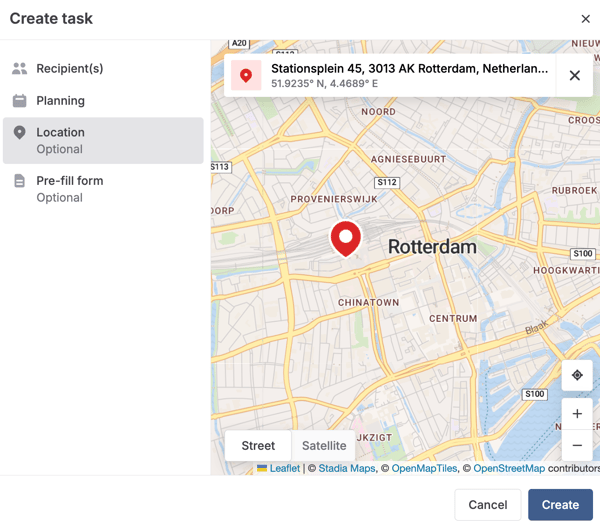
During the configuration of the task, you can link the task to a specific location. To do so, go to the Location tab. There are three different ways to assign the location to the task:
-
Search for the location: Type the location into the search bar, so it is loaded on the screen.
-
Click on the map: Use the map on the screen to look for the desired location and click on it.
-
Add the coordinates: Write the coordinates into the search bar so the exact location is loaded.
3. Open the task in the App
Once the task is created via the Platform, the assigned users receive a push notification on their phone or tablet. Access the Tasks section in the App menu.
The user can view a task summary, including the task message, the due date for task completion and the distance to the location. It is possible to sort tasks by: name, last opened, creation date, due date or location. That way, tasks' completion can be organised based on the distance to each of them.
Users can also find a specific task by clicking on the search icon and typing a reference word that can help them find the task they are looking for.
Note: If the location is not enabled on the device, instead of the distance, the user will see the address of the location.
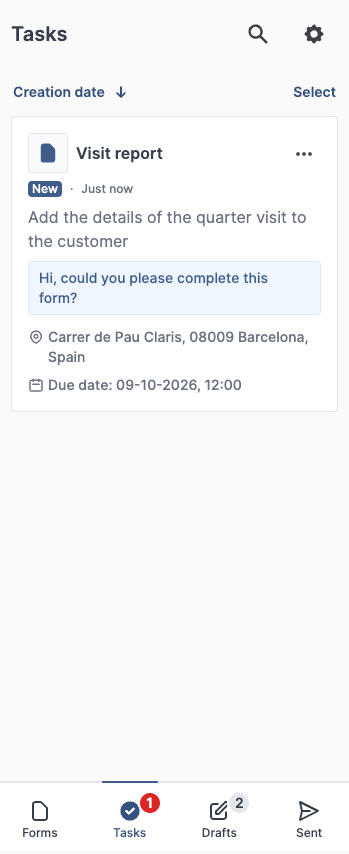
When clicking the three dots at the top corner of the task, the details can be opened for more information. There, the map with the location will appear.
4. Open the navigation app
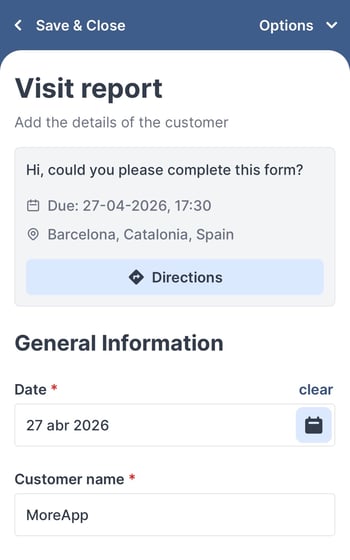
When you open the task in the App, at the top of the form, you will see the details of the task plus a button to show you the location.
Click on Directions, and you will be redirected to your default navigation app.
Once in the navigation app, you could start the route to the task's destination.
5. Congratulations!
You have successfully configured a task based on location! This will help the users to know which tasks need to be performed at each location.
Want to keep up with the latest tutorials? Visit our YouTube channel and Subscribe!